🛡️ Approvals & Safety
Ludus stages changes and asks before it touches your project. Sensitive actions pause for approval, so you decide what runs and what does not. This is the control surface that lets an agent work inside a live project without surprising you.
What triggers an approval
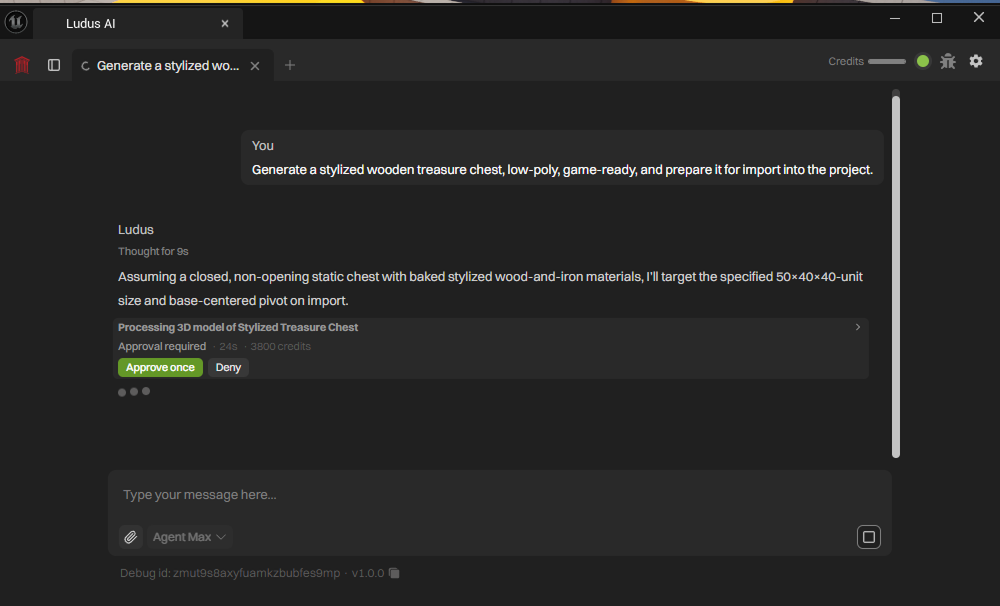
Approval prompts appear for sensitive actions, with separate prompts for:
- Generation (creating an image, 3D model, animation, or audio).
- Imports (bringing a generated asset into the project).
- Project commits (applying edits to your Blueprints, assets, or code).
Responding to a prompt
Each approval prompt gives you two choices:
- Allow once: the action runs this time.
- Deny: the action does not run. You can add a short explanation of why, and Ludus adjusts its next attempt based on your reason.
Generation requests wait for your decision; the panel does not automatically deny them after 60 seconds. The editor controls when a request expires. If a request expires, prompt again or re-run the step. See Troubleshooting.
The plan panel is separate. See Planning, Memory & Sub-agents.
Approval modes
You control how often Ludus asks:
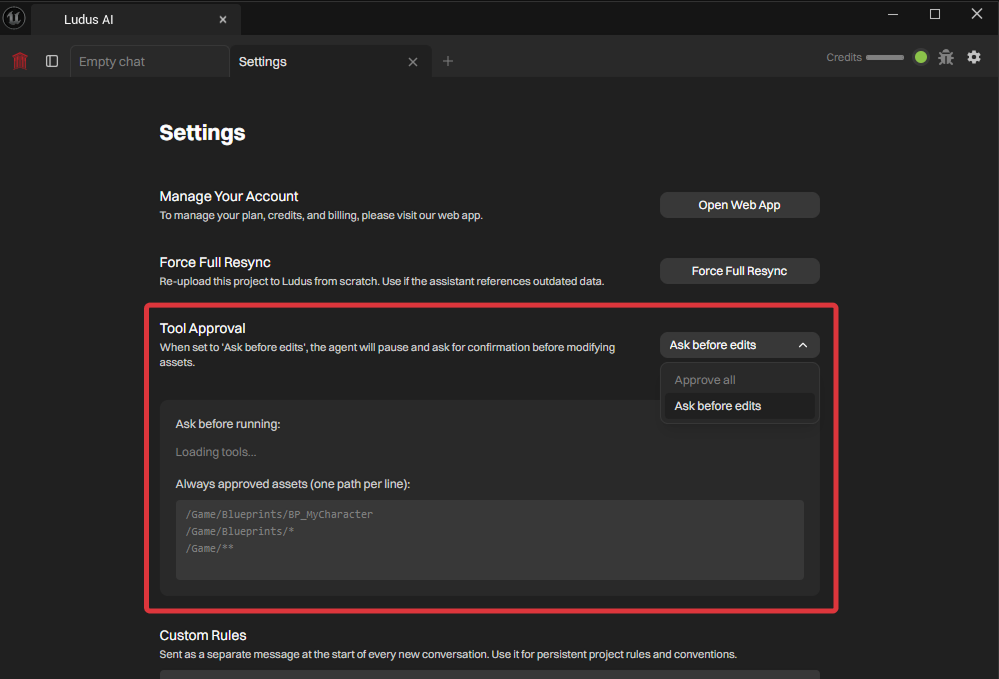
- Default: ask before file edits, generation, and other mutating actions.
- Ask every time: ask before running any non-hidden tool, including reads. This is the strictest mode.
- Yolo: run every tool automatically, with no prompts.
- Custom: custom per-tool approval setup.
Always-approved paths and permissions
In settings you can tune the control surface to your workflow:
- Set always-approved asset paths, including wildcards, so a whole folder is trusted.
- Set per-category tool permissions, so you allow some kinds of actions and restrict others.
- Add custom rules for how Ludus should behave.
Applying edits safely
Changes are staged and applied in a single commit step with a plain-English summary that you approve before anything lands. If you prefer, individual edits can apply immediately instead of waiting for the commit step.
Related settings
Other controls that affect safety and recovery live in Settings: custom rules, skipped-asset quarantine, re-index, factory reset, and crash-reporting preferences. On login, Ludus warns you if no source control (Git or Perforce) is detected in the project, so you have a way to roll back changes.
Every editing and generation page links back here, because approvals apply to all of them.