💬 Chat, Context & Attachments
The chat is where you work with Ludus. You open it from the Ludus button in the Level Editor toolbar. Every chat already knows what you are working on, and you can attach assets, images, and documents to give Ludus more to work with.
Context awareness
Ludus automatically reads your current working context in every chat. You do not enable it. It knows:
- The open map and the current folder.
- Open assets and the Blueprint nodes you have selected.
- Selected actors and your Content Browser selection.
- Assets visible in the viewport.
This means you can say "explain the selected nodes" or "move these actors closer together" without naming files. For a broader picture of what Ludus understands about the whole project, see Agent Overview.
Attachments
You can add specific context to a message:
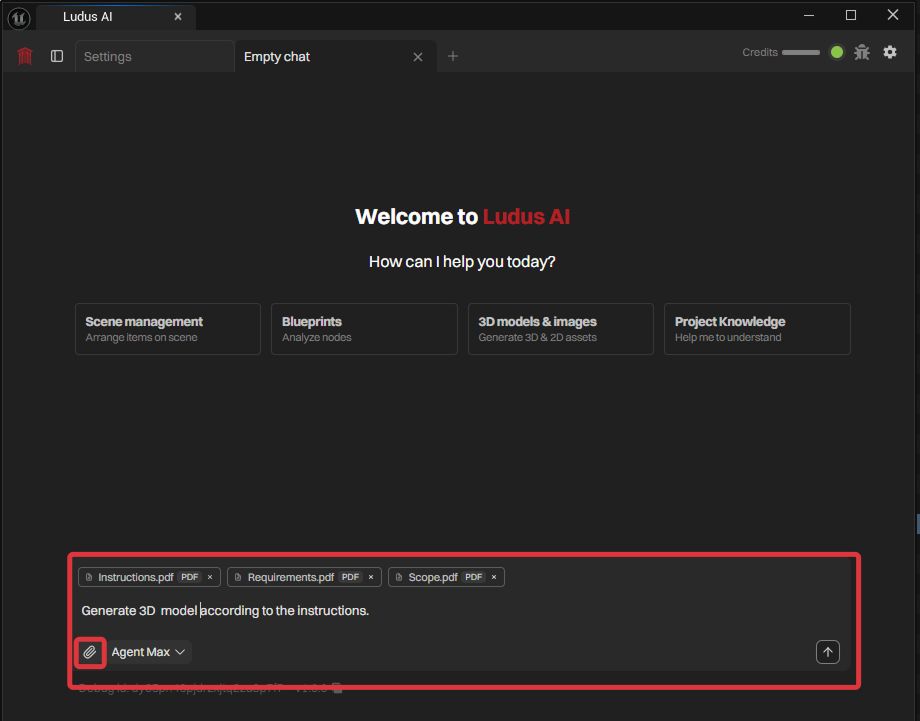
- Search or mention project assets and source files to attach them. Attached items show as thumbnails and color-coded chips.
- Start writing with @ to open inline menu for asset search.
- Drag and drop assets from the Content Browser into the chat.
- Attach up to 10 images, up to 20 MB each.
- Attach documents: PDF, Word, Excel, PowerPoint, CSV, Markdown, and text.
To feed design documents to the agent for the whole project rather than a single message, use the Docs folder described in Project Documents.
Reading Ludus responses
- File paths and assets that Ludus mentions render as colored, clickable badges that jump to the relevant context. Attachments appear as rich cards with metadata.
- Real-time indicators show thinking status with token and time stats.
- You can edit a previously sent message, and Ludus continues automatically when a background task finishes.
- The prompt stays usable during background tasks and billing refreshes; queued messages send automatically when connectivity returns.
Feedback and quick actions
Give a response a thumbs up or down. Quick actions let you reset the chat, pause and resume operations, and capture a bug-report screenshot from the chat.
Anything Ludus does that changes your project still passes through Approvals & Safety.