🦴 Auto-Rigging
Ludus turns a static mesh into an animation-ready skeletal mesh from the Ludus chat in the plugin window inside the Unreal Editor. You give it a static mesh and a prompt, and Ludus builds the skeleton and skinning so the mesh can be animated, then stages the result for import. This removes the manual rigging pass that normally stands between a finished model and its first animation.
How to use
- Open the Ludus plugin window in the Unreal Editor (Unreal Engine 5.4 to 5.8).
- Select or reference the static mesh you want to rig.
- Ask Ludus to rig it in the chat.
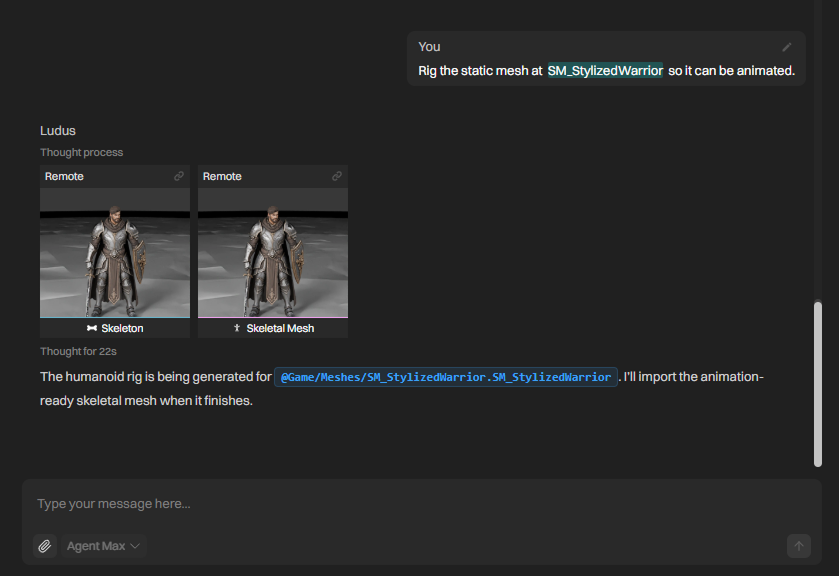
- Review the rigged result in the in-chat preview card.
- Approve the import. The mesh imports as a skeletal mesh with its skeleton.
Example prompt: "Rig this humanoid character mesh so it can be animated." Expected result: Ludus produces a skeletal mesh with a skeleton, shown in the preview card and staged for approval.
Options
- Input: a static mesh (generated by Ludus or already in your project). Rigging only reliably supports standard humanoids.
- Output: an animation-ready skeletal mesh with a skeleton, imported automatically.
After rigging
Once a mesh is rigged, generate motion, edit Animation Blueprints or Control Rigs, and adapt clips on the Character Animation page, and manage the imported skeletal mesh from the Asset Library & Import.
Approvals
Ludus will ask you for approval before making edits. See Approvals & Safety.