📚 Asset Library & Import
Ludus imports generated assets into the project automatically and keeps them in a dedicated Asset Library, both from the Ludus plugin window inside the Unreal Editor. Generations also appear as live preview cards in the Ludus chat while they run. This page covers automatic import, the library, and in-chat previews.
Automatic Asset Import
Generated models, characters, and animations import automatically. Ludus matches the correct skeleton, materials, PBR maps, and companion textures on import.
- Rigged models import as skeletal meshes.
- Scene placeholders are replaced with the final mesh when it is ready.
- All assets receive Content Browser thumbnails automatically.
Asset Library
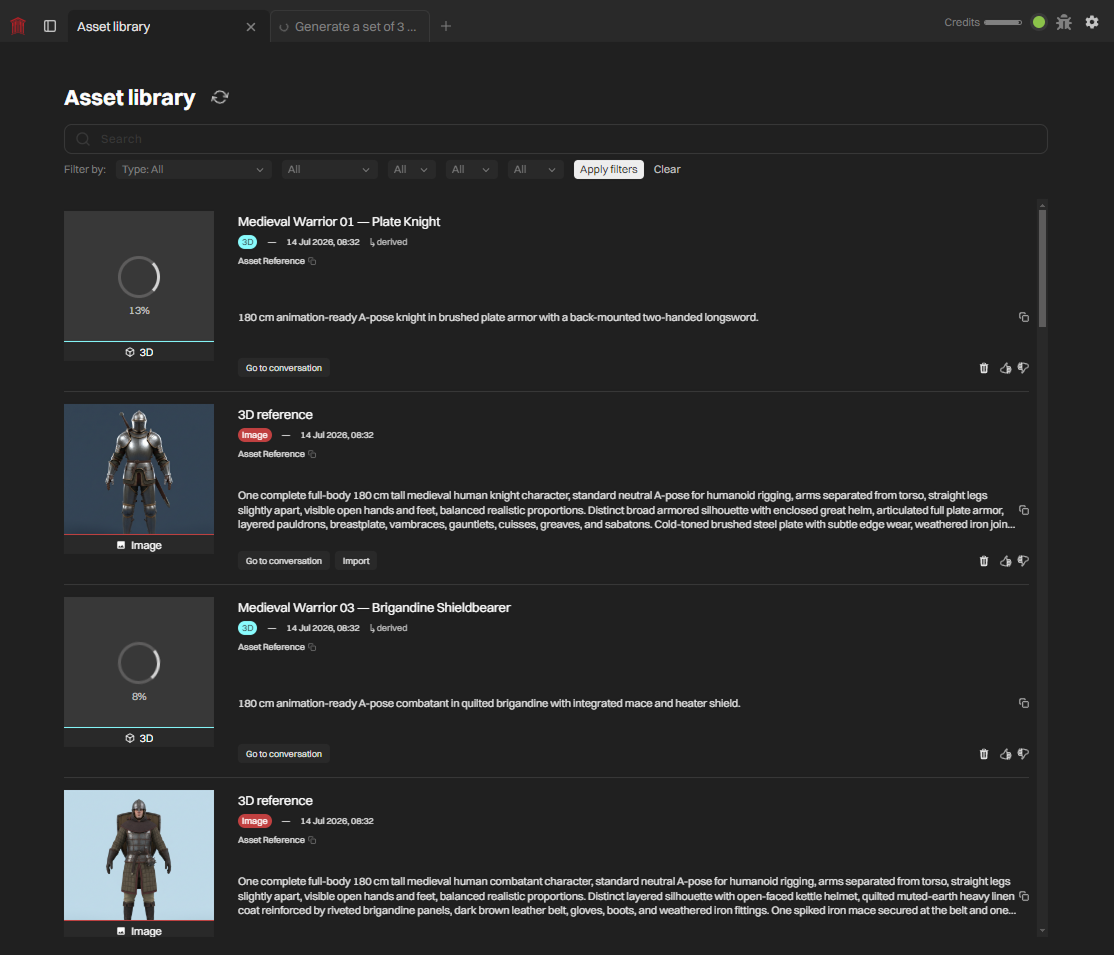
The Asset Library is a dedicated, endlessly scrolling library of your generated assets.
- Open the Asset Library in the Ludus plugin window.
- Browse, search, and filter by type, status, or date.
- Select an asset to preview it.
- Act on an asset: import, reveal in engine, download, favorite, delete, or retry a failed generation.
Example: filter by type "animation" and status "failed", then retry the failed generation. Expected result: Ludus re-runs the generation and updates the card when it completes.
- Asset lineage shows how each asset was created.
- Assets removed in the editor revert to an import state so you can re-import them.
In-Chat Generation Previews
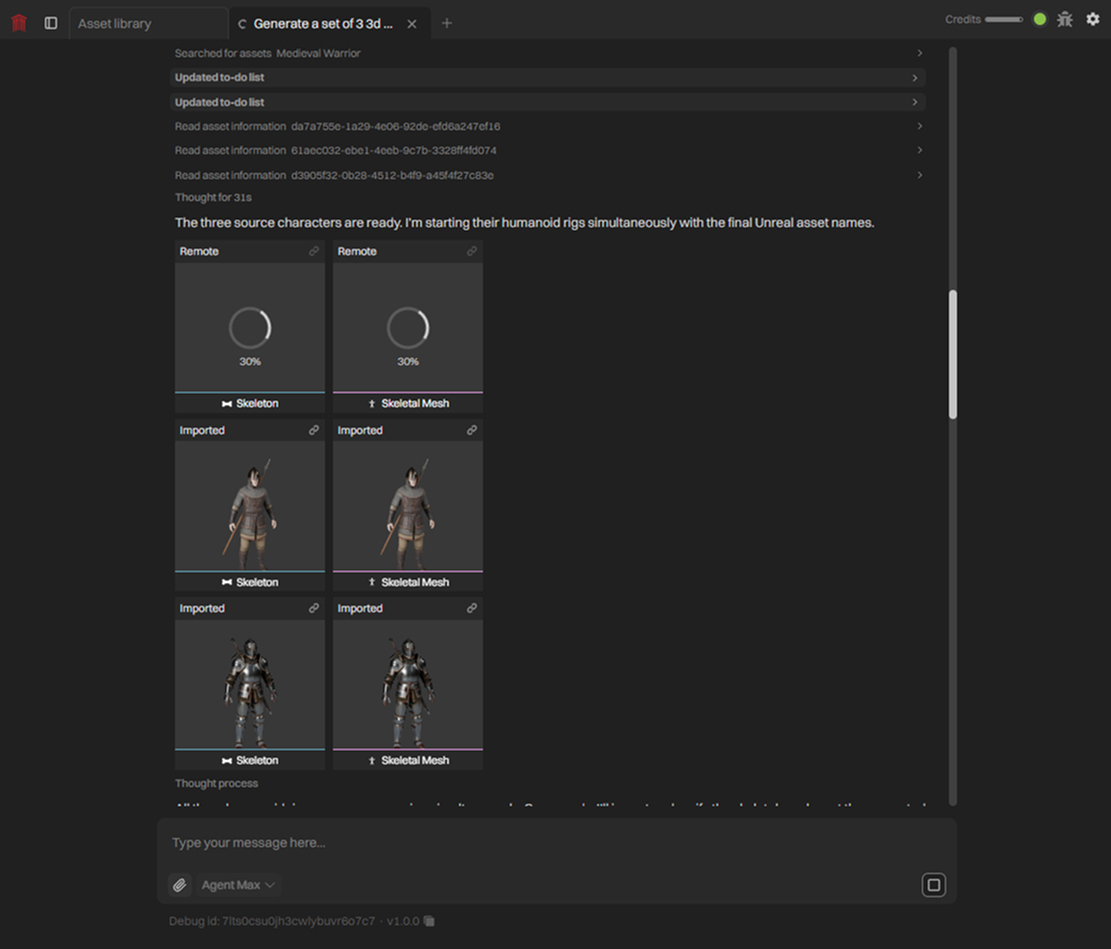
While a generation runs, Ludus shows a live asset card in the chat.
- Thumbnail, or an autoplaying video for animations.
- Progress percentage while the asset builds.
- Click-through to the full asset.
- An indicator of how many generations are running.
Options
- Import: automatic for models, characters, and animations, with skeleton, materials, PBR maps, and companion textures matched.
- Library actions: preview, import, reveal in engine, download, favorite, delete, retry failed generations.
- Browsing: search and filter by type, status, and date, with endless scrolling.
- Lineage: each asset records how it was created.
- Recovery: assets removed in the editor revert to an import state.
For where results come from, see 3D Models & Transforms, Character Animation, and Image Generation. For placement in a level, see Levels & Scenes. For import costs, see Credits & Costs.
Approvals
Ludus will ask you for approval before making edits. See Approvals & Safety.