📄 Project Documents
Ludus can read and learn from documents you keep in your project, so design intent lives alongside the code and assets. This is how a team feeds design documents, specs, and notes to the agent once, instead of re-attaching them in every chat.
How it works
Files placed in the project Docs folder are read and learned from automatically. Ludus then uses them as context across chats, the same way it uses your Blueprints and assets.
Manage your documents
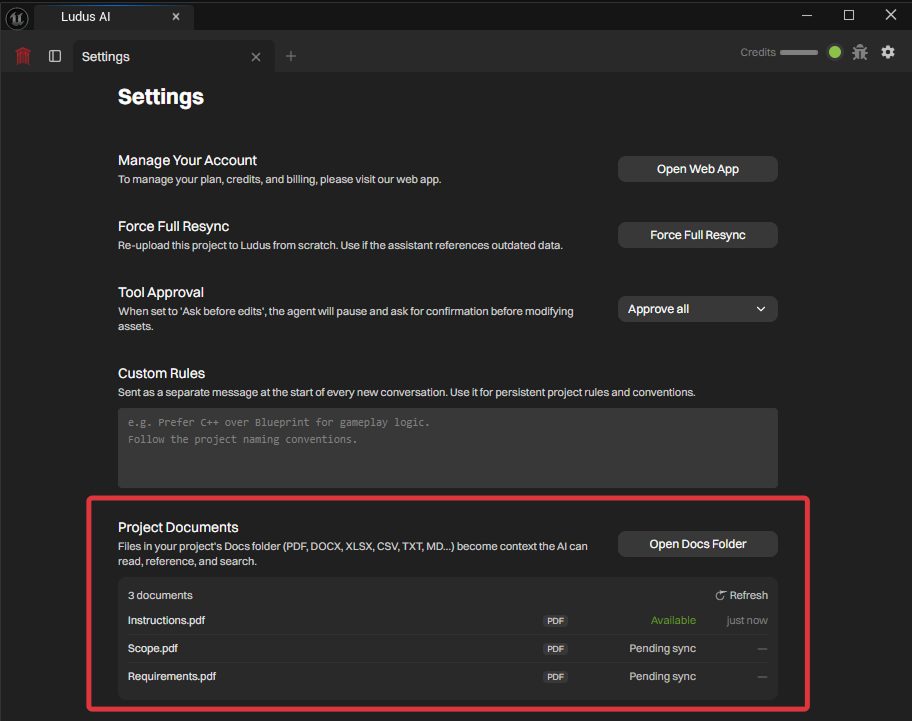
The Project Documents settings panel lists every file with its sync status and opens the Docs folder in one click.
- Open the Project Documents panel in the Ludus settings.
- Click to open the Docs folder.
- Add or update your documents (for example a game design document or a systems spec).
- Check the sync status next to each file to confirm Ludus has read it.
What to put here
Use the Docs folder for durable, project-wide context: design documents, naming conventions, systems specs, and rules the agent should follow. For one-off context in a single message, attach the file directly instead; see Chat, Context & Attachments.
Supported files
The Docs folder reads the same document types you can attach in chat: PDF, Word, Excel, PowerPoint, CSV, Markdown, and text.