🖼️ Image Generation
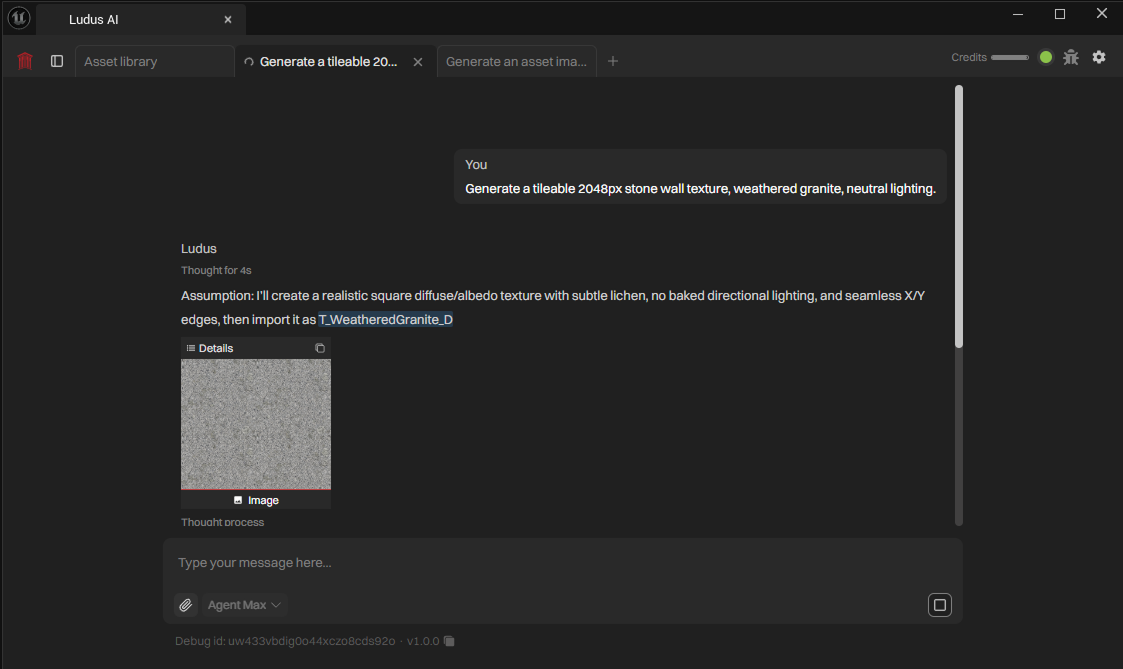
Ludus generates 2D images from a text description and imports them into the project from the Ludus chat in the plugin window inside the Unreal Editor. It runs as an agent: it reads the project, generates the image, and stages the import for you to review. Use it for textures, decals, particle sprites, reference art, and concept art.
How to use
- Open the Ludus plugin window in the Unreal Editor (Unreal Engine 5.4 to 5.8).
- Type a description of the image in the Ludus chat.
- Pick the generation mode for what you need: asset, realistic-asset, character, or scene preview.
- Review the generated image in the in-chat preview card.
- Approve the import to place the image into the Content Browser.
Example prompt: "Generate a tileable 2048px stone wall texture, weathered granite, neutral lighting." Expected result: Ludus generates the texture, shows it in an in-chat preview card, and stages the import into the Content Browser for approval.
Edit an existing image
Describe the change and Ludus edits the image in place instead of generating a new one.
Example prompt: "On the stone wall texture, add moss in the lower third." Expected result: Ludus returns an edited version of the same image with the moss added, staged for approval.
Upscale an image
Ludus upscales an image to 720p, 1080p, 1440p, or 2160p.
Remove a background
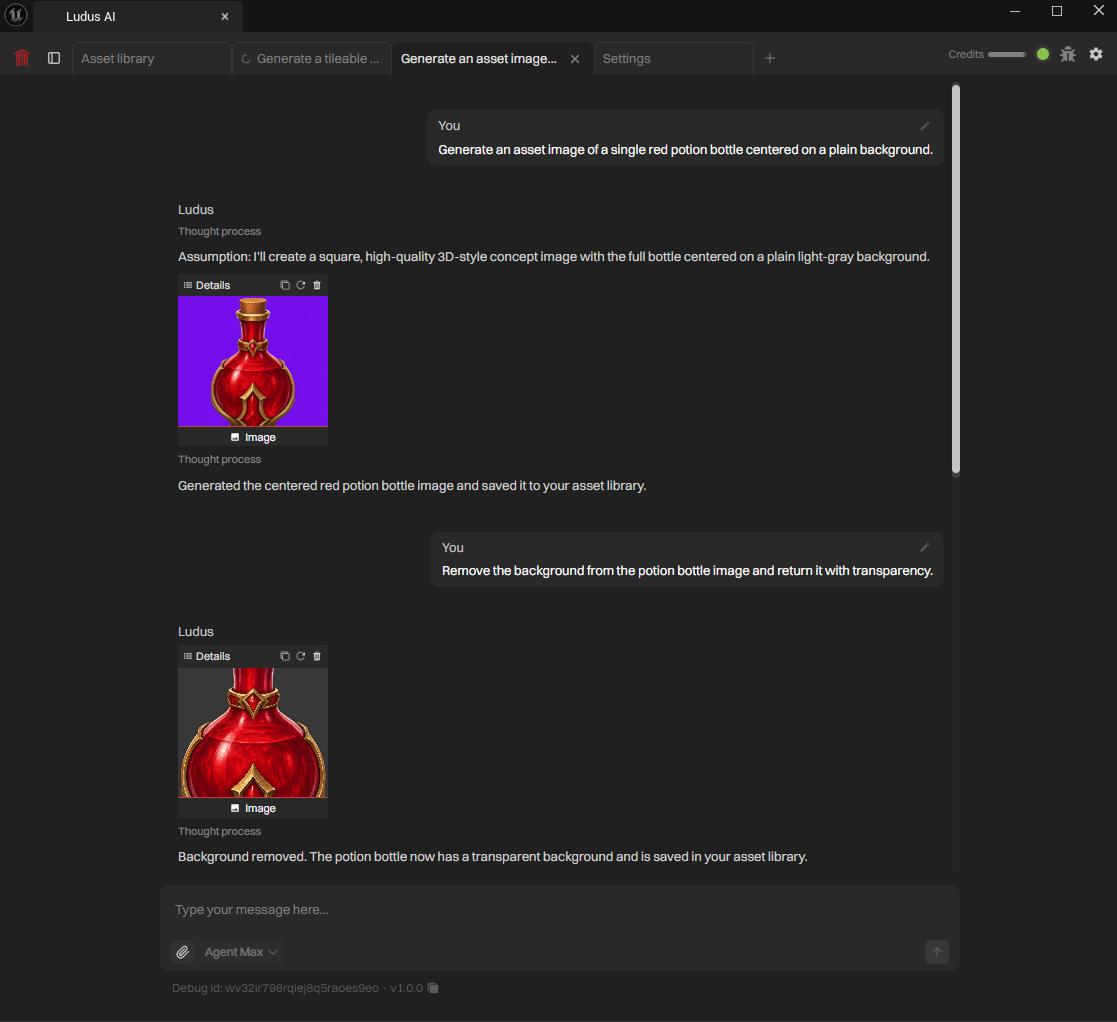
Ludus removes the background from an image and returns it with transparency, which is useful for decals and particle sprites.
Retexture a mesh from a description
You can retexture a finished mesh from a text description. This runs through the 3D transform tools. See 3D Models & Transforms.
Options
- Modes: asset, realistic-asset, character, and scene preview.
- Quality: draft, low, medium, or high (default medium). Draft is the fast tier. Quality applies to generation and edit.
- Aspect ratio: square, landscape, or portrait (default square). Draft supports square only; low, medium, and high support all three. Aspect applies to generation and edit.
- Editing: describe the edit to change an existing image.
- Upscaling resolutions: 720p, 1080p, 1440p, or 2160p.
- Background removal: returns the image with a transparent background.
For guidance on writing prompts, see Effective Prompting. For worked examples, see Examples of Usage. For selecting generation modes, see Modes.
Approvals
Ludus will ask you for approval before making edits. See Approvals & Safety.