🧊 3D Models & Transforms
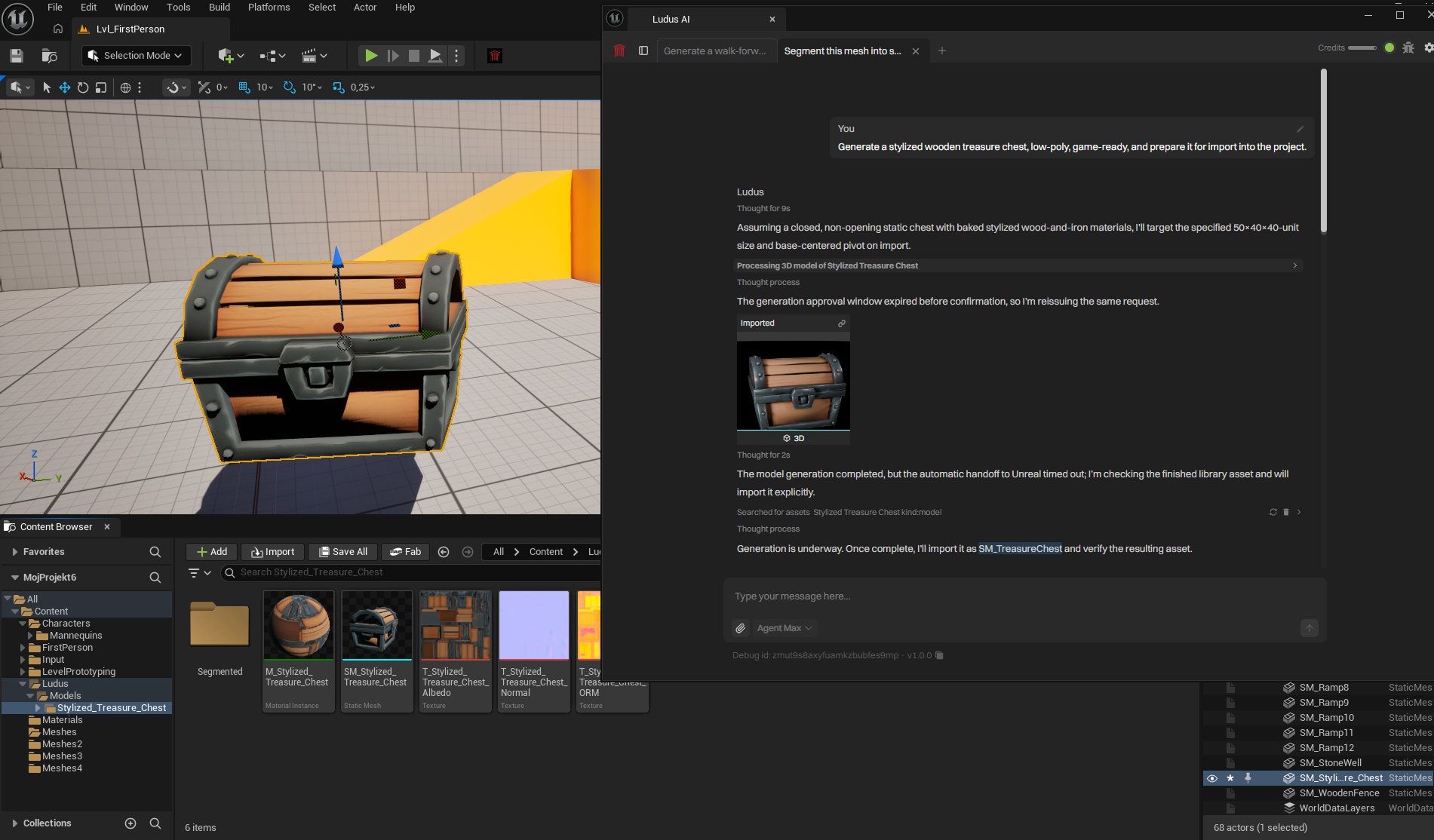
Ludus generates 3D models from a prompt and/or a reference image, then imports them into the project from the Ludus chat in the plugin window inside the Unreal Editor. It also transforms existing or generated meshes: retexture, retopologize, and segment into parts. Ludus places a placeholder into the level while a model builds and swaps it for the final mesh when ready.
How to use
- Open the Ludus plugin window in the Unreal Editor (Unreal Engine 5.4 to 5.8).
- Type a description of the model in the Ludus chat. Attach a reference image if you have one.
- Choose to generate instantly or to preview first. The preview workflow is image-first: Ludus generates a 2D reference image, you iterate on it, then Ludus builds the mesh from the approved image.
- Set the quality (low to ultra) and the mode (default, optimized, or uniform).
- Review the placeholder in the level and the generated mesh in the in-chat preview card.
- Approve the import. Ludus replaces the placeholder with the final mesh.
Example prompt: "Generate a low-poly wooden crate, roughly 1 meter, default mode, medium quality." Expected result: Ludus places a placeholder in the level, builds the crate mesh, and stages the import. On approval the placeholder is replaced with the final static mesh in the Content Browser.
Upload your own image
Attaching your own image skips image generation. Ludus builds the mesh directly from the image you provide.
Transform an existing mesh
Run any of these on an existing or generated mesh:
- Retexture: apply a new surface from a text description.
- Retopologize: rebuild topology.
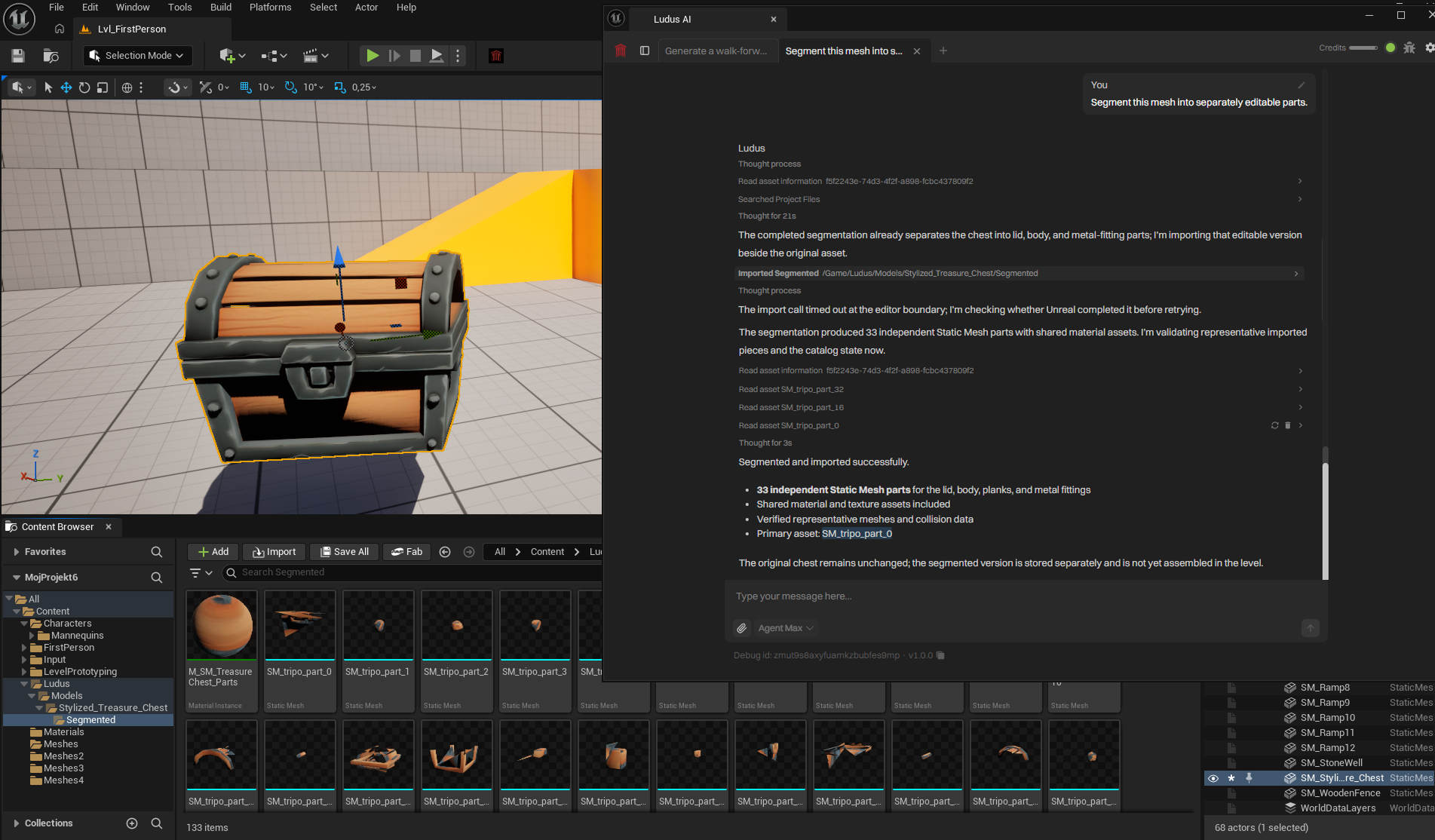
- Segment into editable parts: split the mesh into separately editable pieces.
Extract an object from a photo
Describe the object and Ludus cuts it out of a photo and builds a mesh from it.
Example prompt: "Cut out the lamp from this photo and make a 3D model of it." Expected result: Ludus isolates the lamp, generates the mesh, and stages the import.
Options
- Input: prompt, reference image, or both. Uploading an image skips image generation.
- Quality: low to ultra.
- Modes: default, optimized, uniform.
- Workflow: generate instantly, or preview first with the image-first iteration flow.
- Placement: a placeholder is placed into the level automatically and swaps for the final mesh when ready. See Levels & Scenes.
- Transforms: retexture, retopologize, segment into parts, extract from a photo.
- Ownership: you have full ownership of generated content.
Generated results land in your library and import automatically. See Asset Library & Import. For prompt guidance, see Effective Prompting and Examples of Usage. For selecting modes, see Modes.
Approvals
Ludus will ask you for approval before making edits. See Approvals & Safety.