🗂️ Asset Management
Ludus manages assets directly in the Content Browser from the Ludus chat in the plugin window inside the Unreal Editor. It creates, deletes, duplicates, renames, and moves assets, and opens asset editors. It respects the project's folder structure and asset references while it does so.
How to use
- Open the Ludus plugin window in the Unreal Editor (Unreal Engine 5.4 to 5.8).
- In the Content Browser, note the target folder, or reference it and the assets by name in the chat.
- Type your request in the Ludus chat, naming the assets and the operation (create, delete, duplicate, rename, move, or open).
- Review the staged Content Browser operations.
Example prompt: "Duplicate M_Metal into /Materials/Weapons, rename the copy to M_IronSword, and open it." Expected result: Ludus duplicates the material into the target folder, renames the copy to
M_IronSword, stages the operations for approval, and opens the asset editor after you accept.
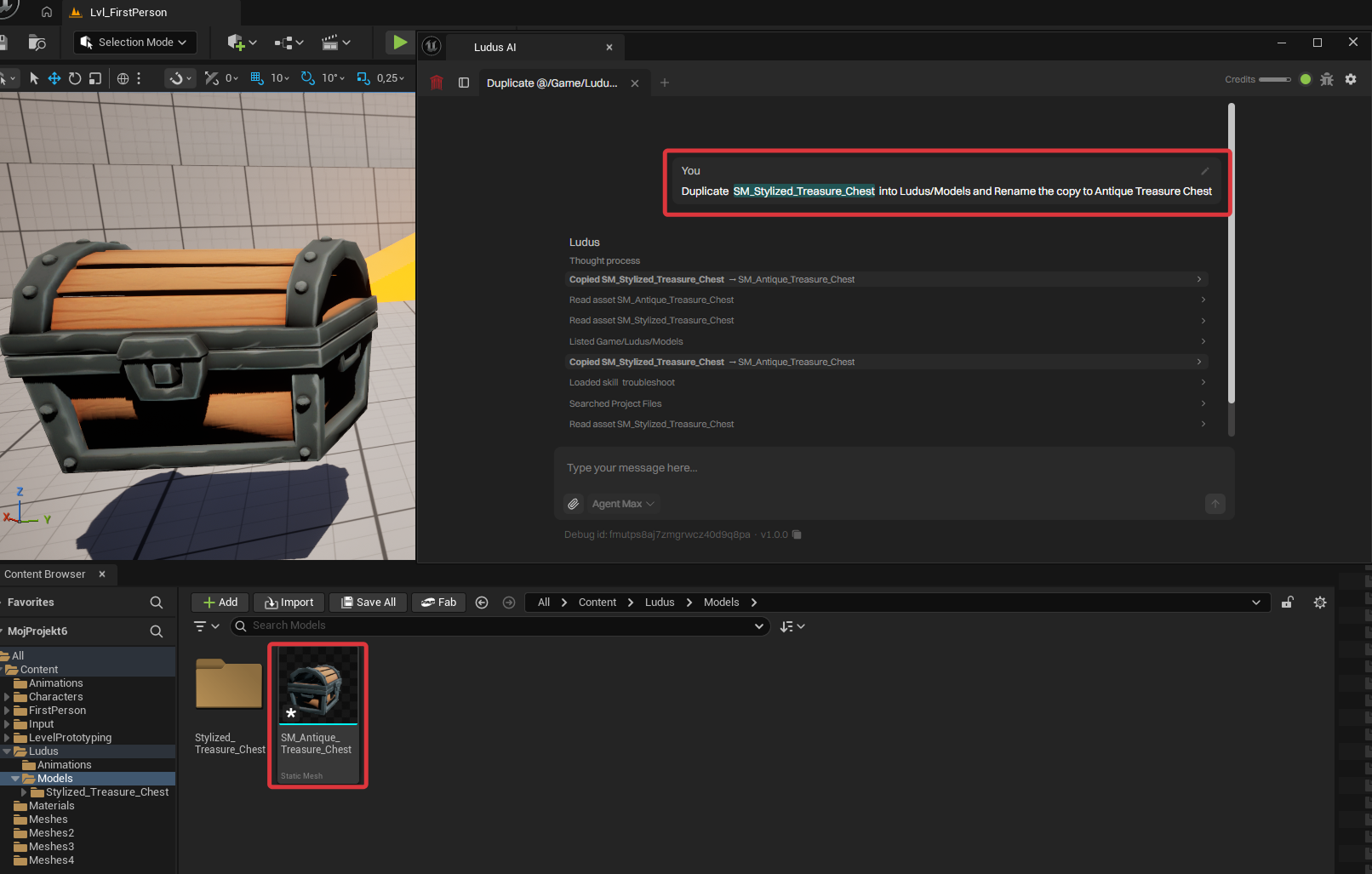
What Ludus can do
- Create, delete, duplicate, rename, and move assets.
- Open asset editors.
- Preserve folder structure and references during the operation.
Options and limits
- Operations respect existing references; deleting or moving a referenced asset is staged so you can review the impact before approving.
- Name assets and target folders explicitly so Ludus places them where you expect.
Approvals
Ludus will ask you for approval before making edits. See Approvals & Safety. For issues with asset operations, see Troubleshooting.