🎨 Material Editing
Ludus creates and modifies Material graphs and adjusts Material Instance parameters from the Ludus chat in the plugin window inside the Unreal Editor. It edits math operations, parameters, and shader logic in a Material graph, and sets colors, textures, and scalar values on a Material Instance.
This removes the manual node work in the Material Editor and the repetitive click-through of editing many Material Instances one at a time.
How to use
- Open the Ludus plugin window in the Unreal Editor (Unreal Engine 5.4 to 5.8).
- In the Content Browser, open the Material or Material Instance you want to change, or reference it by name in the chat.
- Type your request in the Ludus chat, naming the parameters or shader logic to change.
- Review the staged graph edits or parameter changes.
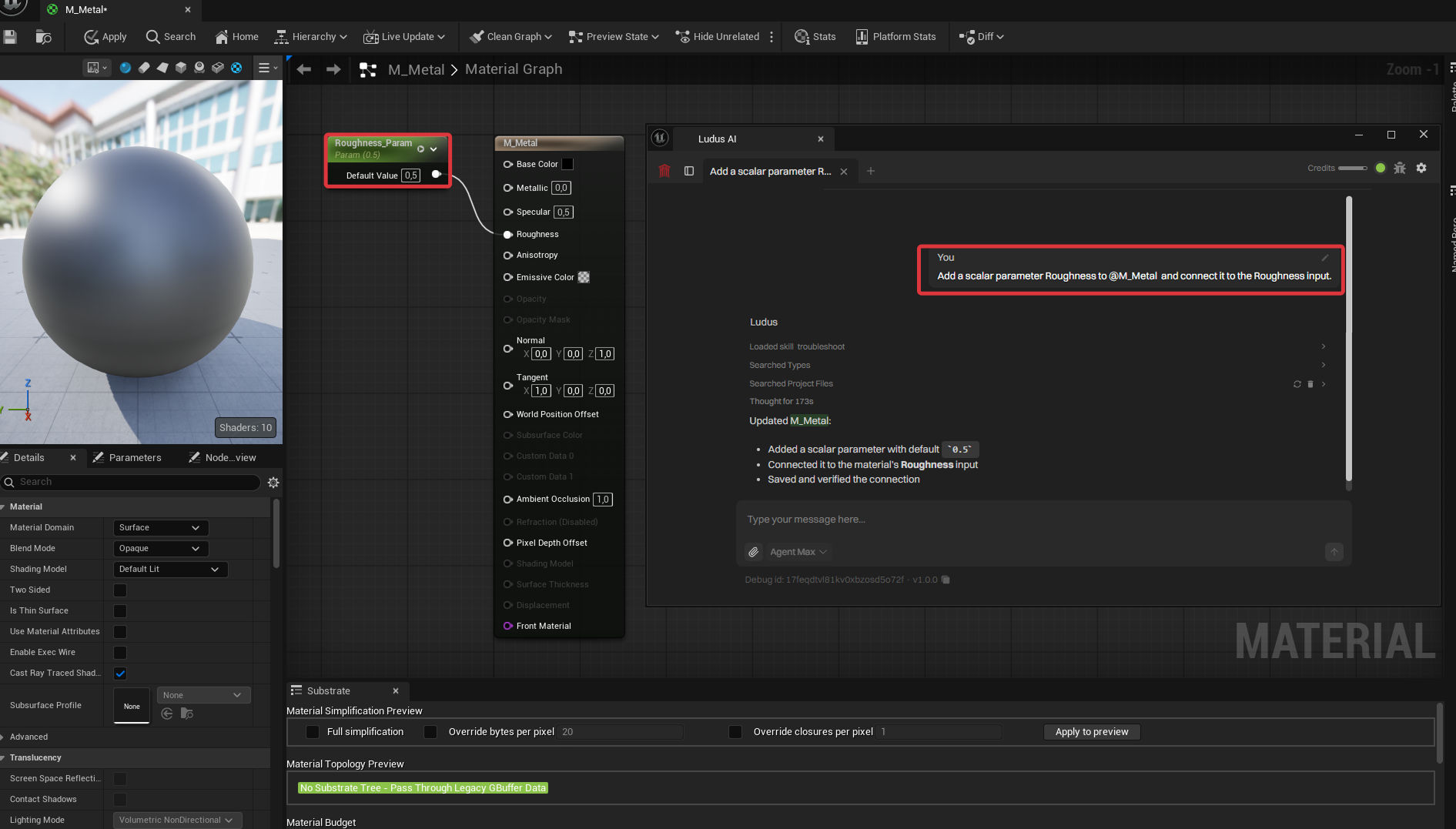
Example prompt: "Add a scalar parameter Roughness to M_Metal and connect it to the Roughness input." Expected result: Ludus adds the
Roughnessscalar parameter node, wires it to the Roughness input of the material output, and stages the graph for approval.
Project-scale edits
Because Ludus has read the project, it can find and edit every affected Material Instance from one request. Example prompt: "Make all iron weapon materials look weathered: lower the roughness contrast and darken the base color." Expected result: Ludus locates the matching Material Instances, stages the parameter changes on each, and lists them for approval.
Generating matching textures
Ludus can generate matching materials and textures to go with an edit. For texture generation, see Images.
Options and limits
- Material graph edits cover math operations, parameters, and shader logic; Material Instance edits cover colors, textures, and scalar values exposed as parameters.
- Project-scale edits act on the Material Instances Ludus identifies from your description; review the staged list before approving.
Approvals
Ludus will ask you for approval before making edits. See Approvals & Safety.