🖥️ Plugin Interface
The Ludus plugin runs as a chat panel inside the Unreal Editor. This page describes each interface element, where it is, and what it does.
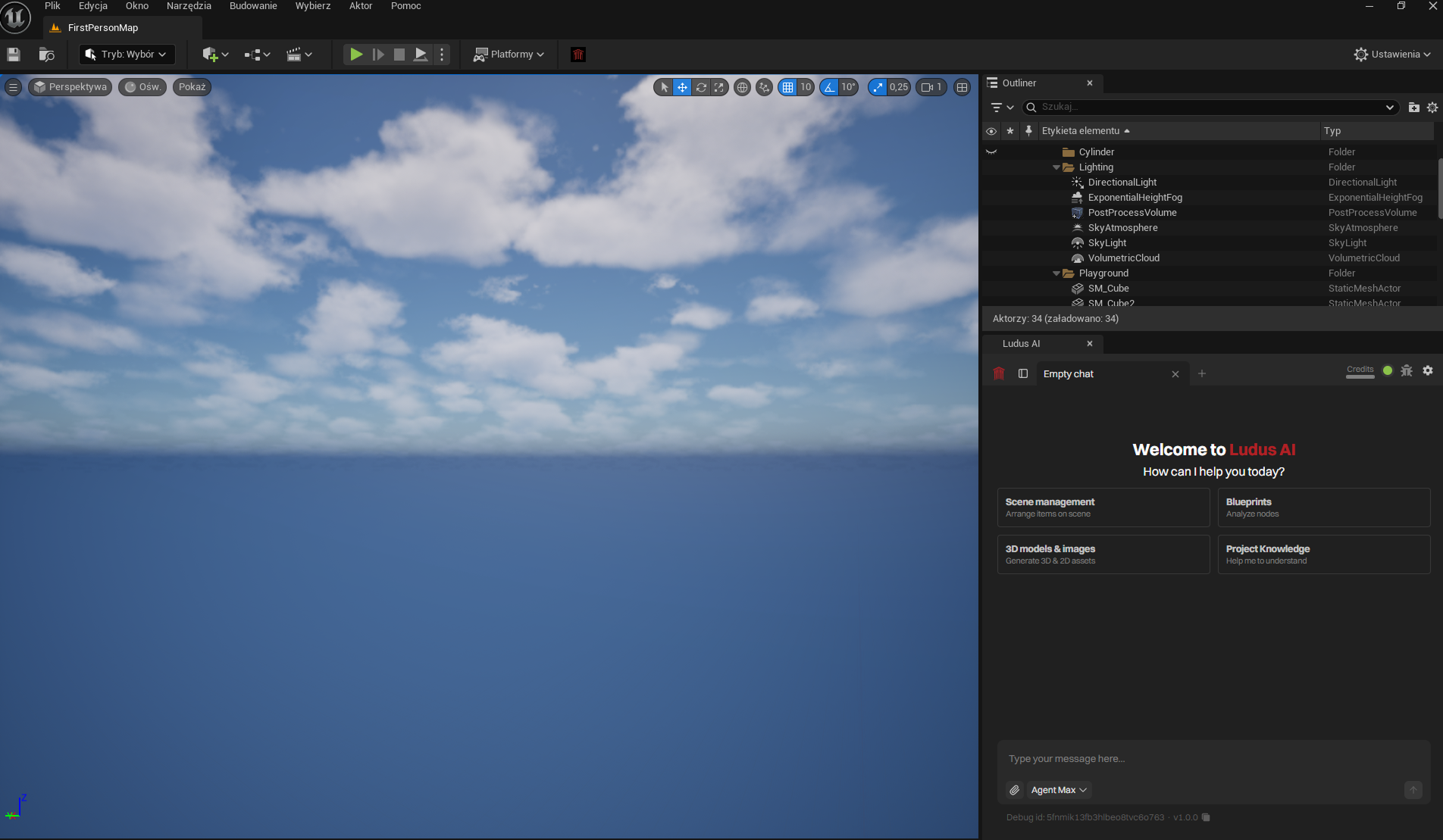
Chat access from the Level Editor toolbar
Open the Ludus chat from the Level Editor toolbar. A dedicated Ludus button/icon toggles the chat panel. Dock the panel like any other Unreal Editor tab.
Status indicator
The status indicator sits at the top of the panel next to the Ludus logo. It reports service availability: operational, minor issues, major issues, outage, and maintenance. Click it to open status.ludusengine.com for detailed uptime reports.
Chat mode selector
The mode selector sets how Ludus handles a request. It offers three tiers, from lighter and faster to fuller agentic work. Pick the tier per request. See Modes.
Prompt improvement
The chat input includes a prompt-improvement option. Click the wand icon in the input field to rewrite your prompt so Ludus can produce better results. After the rewrite, you can still edit the prompt before sending it.
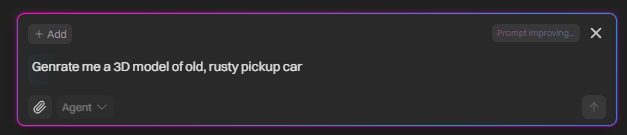
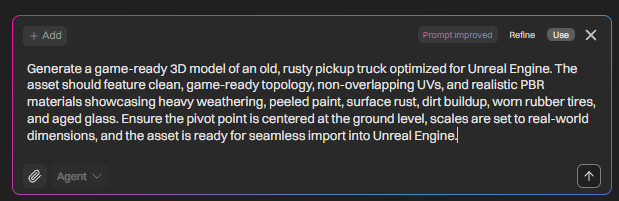
Approval prompts
When Ludus is ready to apply a staged change, an approval prompt appears with a countdown. Accept or reject before the countdown ends. See Approvals & Safety.
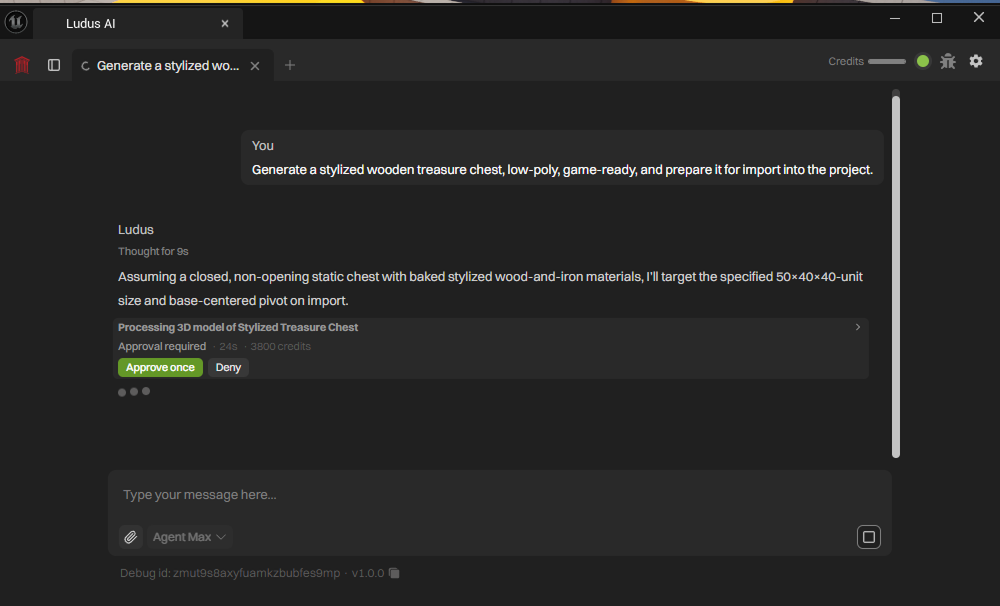
Plan panel and to-do checklist
For multi-step work, Ludus shows a plan panel. Review the plan and accept, reject, or revise it before Ludus starts. Once running, a live to-do checklist tracks progress, marking each step as it completes.
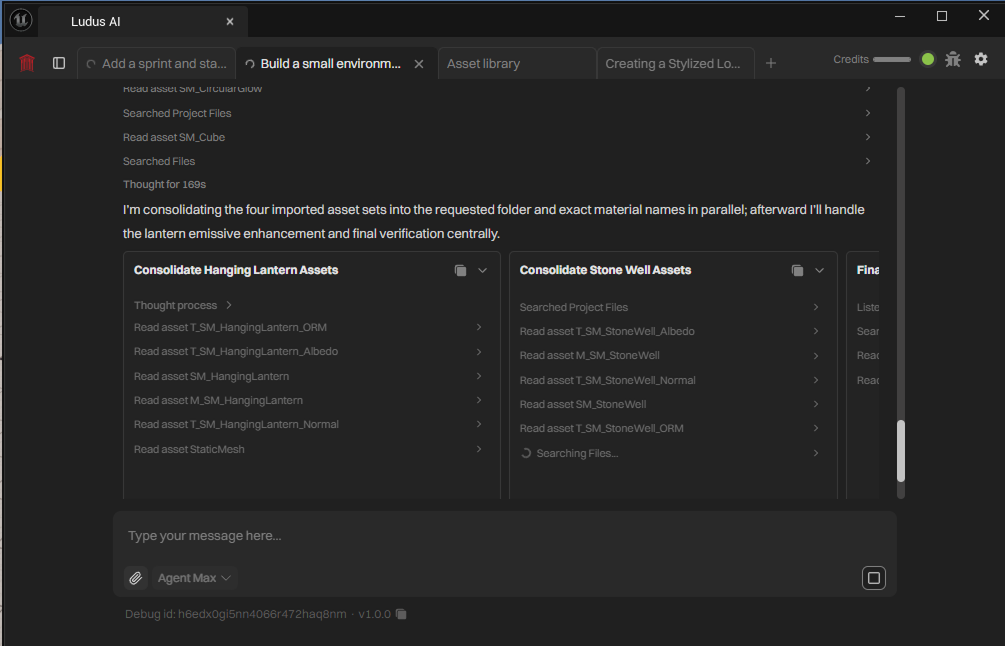
Sub-agent carousel
When Ludus runs sub-agents in parallel, it shows them in a horizontal carousel. Each entry represents one sub-agent and its current work. Scroll the carousel to review each sub-agent.
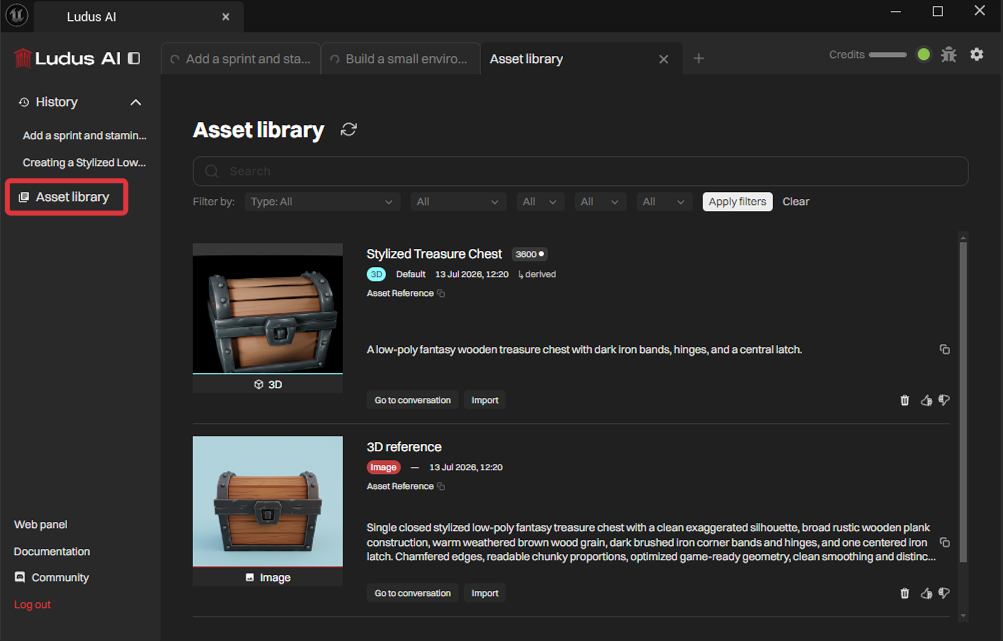
Asset Library entry point
The Asset Library entry point opens the library of generated assets from the plugin panel. Browse and reuse assets Ludus has generated.
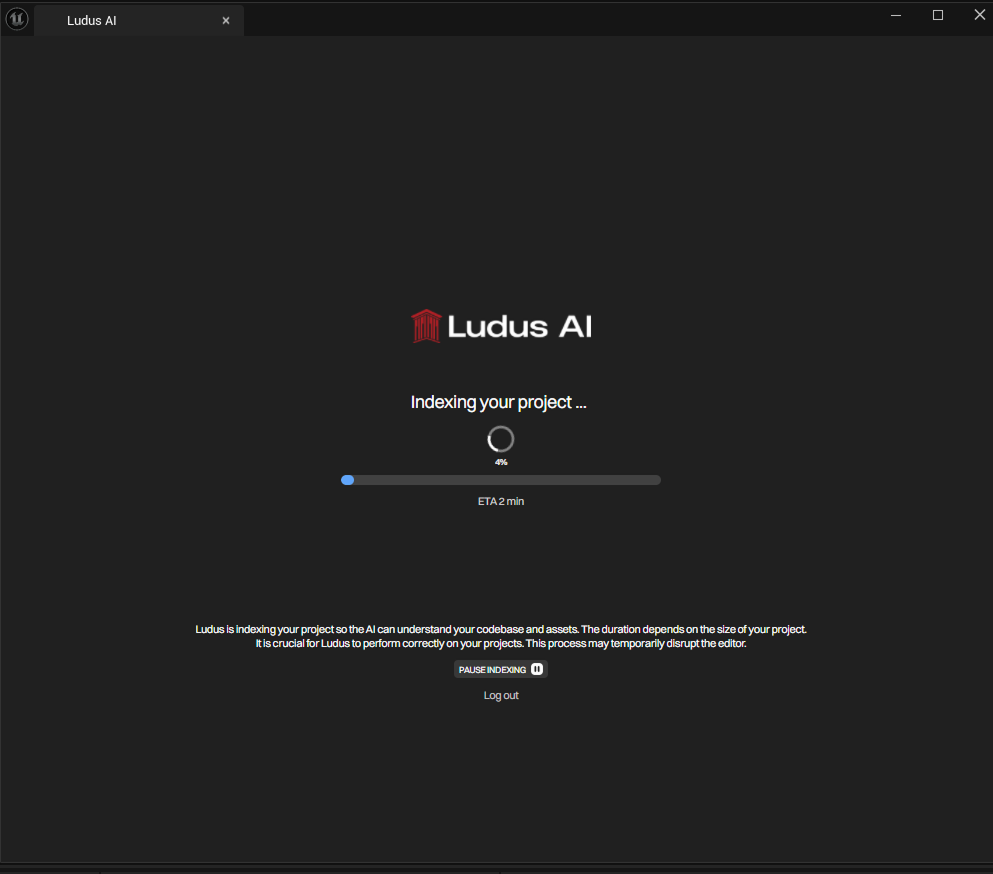
Project indexing overlay
Ludus indexes the project so it can read and understand it. During indexing, an overlay shows progress percentage, estimated time, and files remaining. Pause and resume indexing from the overlay.
Quick actions
Quick actions cover common controls:
- Reset the chat.
- Pause and resume operations.
- Capture a bug-report screenshot.
- Rate a response with thumbs up or thumbs down.
- Edit a previously sent message.
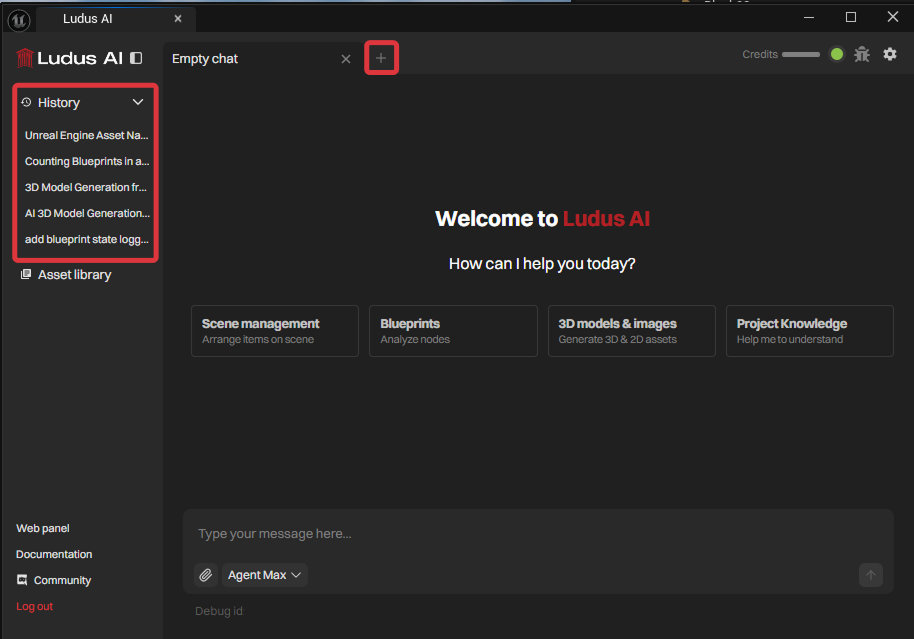
Chat history and new chat
Open chat history to switch between past conversations. Start a new chat to begin a fresh thread with a clean context.
Settings
Open Settings from the plugin panel for account access, custom rules, skipped-asset quarantine, tool approval, and factory reset. See Settings.
Plugin updates
When a new plugin version is available, the panel shows an update notification. Download the latest version from app.ludusengine.com.