🖥️ Plugin Interface Overview
This chapter covers the essential UI elements of the Ludus Unreal Engine Plugin, helping you navigate features, manage chats, and monitor system status.
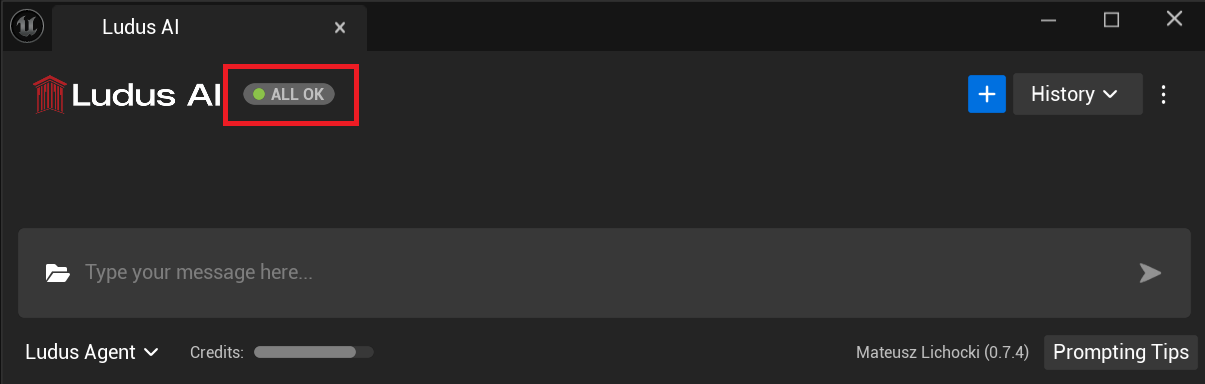
1. Status Indicator
Located at the top of the plugin interface, immediately next to the Ludus AI logo, the Status Indicator provides real-time feedback on service availability.
States:
- 🟢 None (OK): All systems are fully operational.
- 🟡 Minor (PROBLEMS): Some minor issues detected, but core functionality remains available.
- 🟠 Major (PROBLEMS): Significant issues affecting some services.
- 🔴 Critical (OUTAGE): Systems are currently unavailable.
- 🔵 Maintenance: Maintenance is underway, and systems might be unavailable.
Clicking the indicator directs you to status.ludusengine.com for detailed uptime reports.
2. Chat Controls: Undo & Regenerate
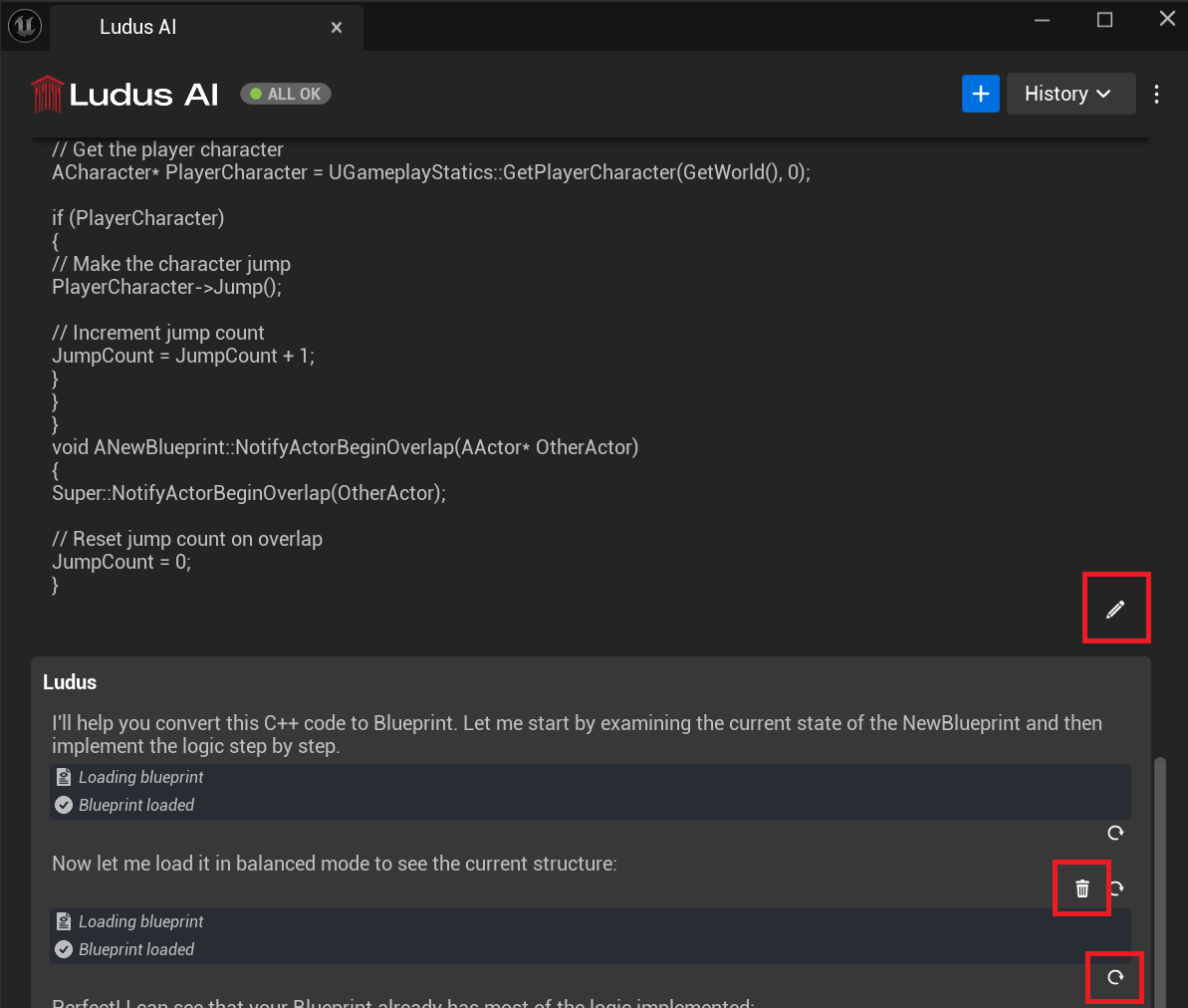
Ludus allows you to refine your interaction flow without starting over.
- Restore Points: The system automatically creates a "checkpoint" before every tool usage or after completed message.
- Undo & Correct: If a query was incorrect or the AI went down the wrong path, you can delete the specific message or return to a previous checkpoint.
- Regenerate: Useful if you want the AI to attempt the answer again with the same context.
3. Chat History
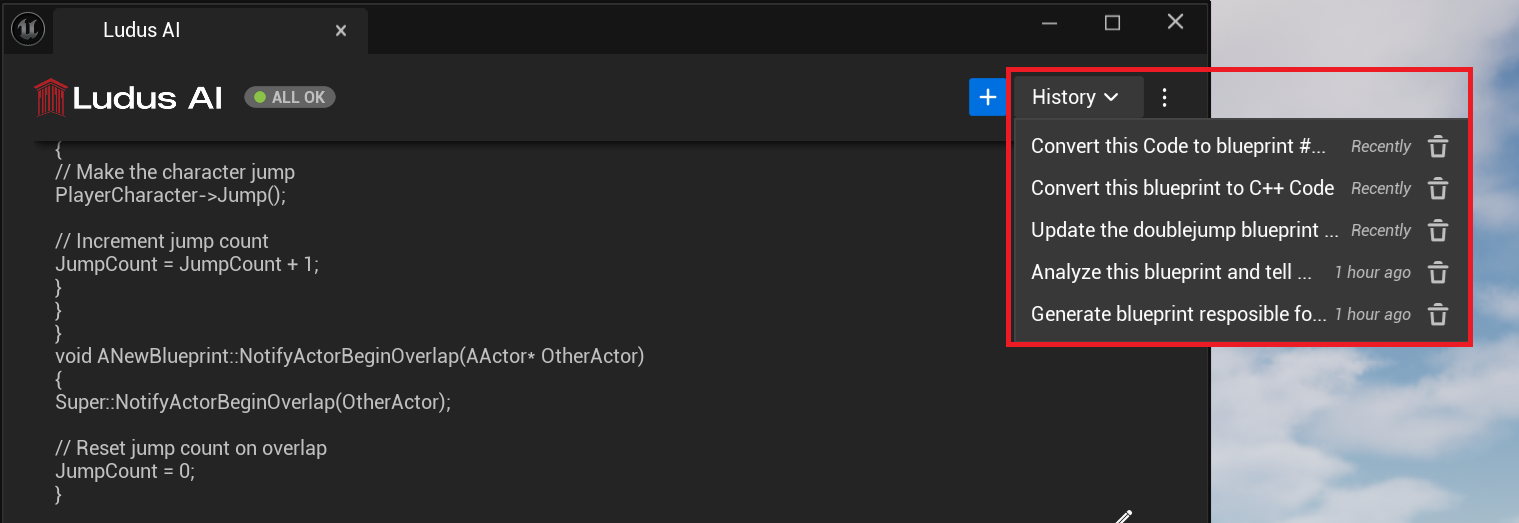
You can manage your conversation sessions via the History dropdown menu in the top-right corner.
- Access: Click the History button to see a chronological list of your recent interactions.
- Manage:
- Open: Click any item in the list to switch to that conversation.
- Delete: Use the trash bin icon 🗑️ next to a chat to permanently remove it.
- New Chat: Click the + button to start a fresh thread with a clean context.
4. Updates & Synchronization
- Plugin Updates: When a new version of the plugin is released, a blue notification bar will appear at the top of the interface. You can always download the latest version from app.ludusengine.com/home.
- Synchronization: Currently, chat sessions are not synchronized between the Unreal Engine Plugin and the Web Application. Conversations are stored locally.
5. Plugin Menu ⋮
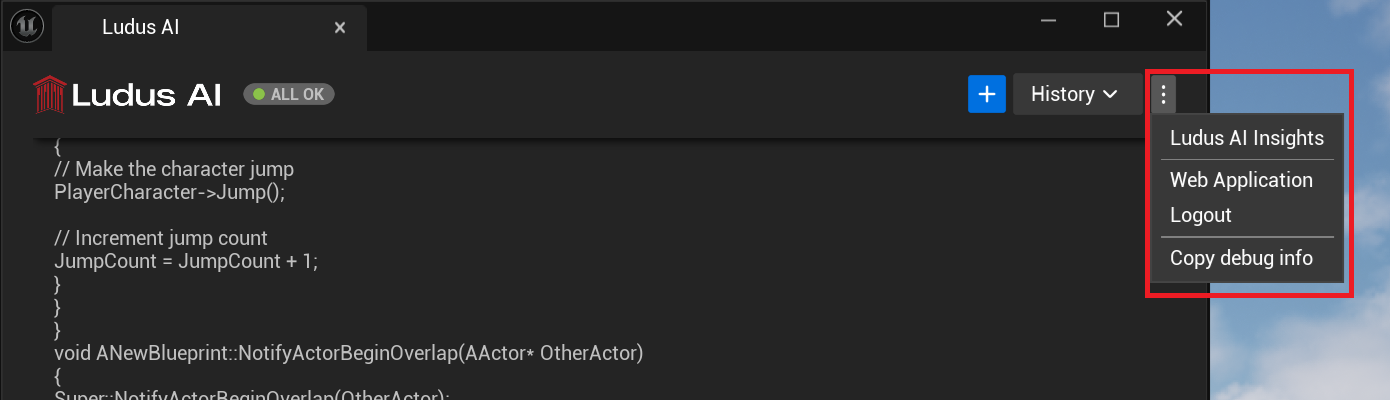
The three dots ⋮ menu in the top-right corner provides access to additional resources and account settings.
- Ludus AI Insights: Opens Insights tool, more info can be found in chapter: Insights tool
- Web Application: Direct shortcut to the Ludus Web App.
- Logout: Signs you out of the plugin.
- Copy Debug Info: Copies technical session data to your clipboard. Paste this into support tickets or Discord messages to help our team troubleshoot issues.